🚀 Step-by-Step Scroll To Top Button with Conic Gradient
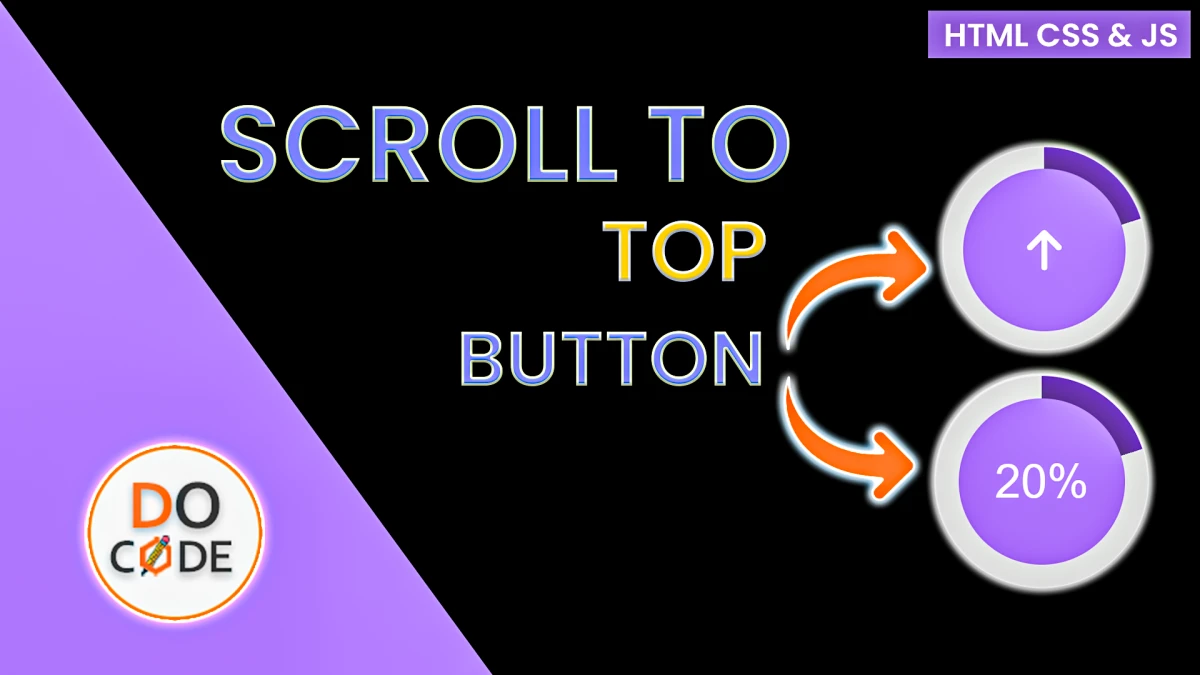
Let’s build a beautiful scroll-to-top button using HTML, CSS, and JavaScript — with a scroll percentage and a conic gradient progress bar.
✅ Live Demo
🧱 Step 1: Add the HTML Button
This is the button that will sit in the bottom-right corner of the screen.
<button class="scrollTopButton hide">
  <span class="box">
    <span class="percentage">0%</span>
    <span class="icon"><i class="fa-solid fa-arrow-up"></i></span>
  </span>
</button>.percentagewill show how much you’ve scrolled..iconis the up arrow using Font Awesome..hideclass keeps it hidden when scroll is less than 5%.
🎨 Step 2: Style the Button with CSS
.scrollTopButton {
  position: fixed;
  bottom: 1rem;
  right: 1rem;
  width: 60px;
  aspect-ratio: 1;
  border-radius: 50%;
  background: conic-gradient(#2b2692 0%, #e0e0e0 0%);
  color: white;
  display: flex;
  justify-content: center;
  align-items: center;
  box-shadow: 0px 4px 10px rgba(0, 0, 0, 0.15);
  padding: 0.4rem;
  transition: 0.3s ease;
  z-index: 100;
}
✅ This makes the button round, positions it, and sets a starting conic gradient.
✨ Step 3: Add Inner Hover Animation
.scrollTopButton .box {
  display: flex;
  flex-direction: column;
  width: 100%;
  aspect-ratio: 1;
  background-color: #4f46e5;
  border-radius: 50%;
  overflow: hidden;
}
.scrollTopButton .box > span {
  display: flex;
  justify-content: center;
  align-items: center;
  width: 100%;
  aspect-ratio: 1;
  transition: transform 0.3s;
}
.scrollTopButton:hover .box > span {
  transform: translateY(-100%);
}
👻 Step 4: Hide Button When Scroll Is Low
.scrollTopButton.hide {
  transform: translateY(120%);
  opacity: 0;
  pointer-events: none;
}
✅ This hides the button when scroll is less than 5%.
⚙️ Step 5: JavaScript for Scroll Logic
const scrollTopButton = document.querySelector('.scrollTopButton');
const percentText = document.querySelector('.percentage');

window.addEventListener('scroll', () => {
  const scrollTop = window.scrollY;
  const docHeight = document.body.scrollHeight - window.innerHeight;
  const percent = Math.round((scrollTop / docHeight) * 100);

  percentText.textContent = `${percent}%`;
  scrollTopButton.style.background = `conic-gradient(#2b2692 ${percent}%, #e0e0e0 ${percent}%)`;

  if (percent > 5) {
    scrollTopButton.classList.remove('hide');
  } else {
    scrollTopButton.classList.add('hide');
  }
});
✅ This script:
- Calculates the scroll percentage.
- Updates the gradient.
- Shows/hides the button as needed.
🔼 Step 6: Scroll to Top on Click
✅ Smoothly scrolls back to the top of the page when clicked.
scrollTopButton.addEventListener('click', () => {
  window.scrollTo({ top: 0, behavior: "smooth" });
});
💡 Done! Now you have a stylish scroll-to-top button with live scroll percentage and progress indicator using just HTML, CSS, and JS.
Tags
scroll to top button
scroll percentage button
conic gradient css
javascript scroll button
html scroll to top
back to top button
animated scroll button
conic gradient progress
smooth scroll javascript
ui components with css